Posts

Personal Write word processor for Amiga

Image
  Shortly after writing of my experiences with Amiga word processors , I found another Amiga word processor that was not included in the previous article. I had previously experimented with Final Writer 5, WordPerfect 4.1, and AmigaWriter 2.0. The actual article was written primarily in WordPerfect 4.1 for Amiga, exported to WP format for MSDOS, loaded into LibreOffice on Linux Mint, then copied and pasted into web forms for my blog and on the forums at Amigaworld.net. The other word processor that I found for Amiga was Personal Write. I had encountered it somewhere on the Internet during my previous experiments. In my search, and after running the program, I discovered that it was last updated by Cloanto back in 1995. I was trying to find a copy of Personal Write when I eventually discovered that it was available on AmigaForever. Since I have a legal copy of AmigaForever, I eventually found Personal Write on my emulated Amiga under Work:Software/AmiToRTF as PWrite. ...

Recent AmigaOS 3.1 Word Processor Experiments

Image
  Recently I have been experimenting with word processing programs under AmigaOS 3. Years ago, back in the 90's, I used my A1200 with Final Writer to create term papers for college. Before I bought my A1200; however, I was using a Gateway 2000 computer running Windows 3.1 on an Intel 386DX/33 processor. For my old Gateway computer, I had landed on a word processor called Breeze. It was a simple, DOS based word processor that was free (shareware), which is the right price for a college student, and did everything that I need. None of my term papers needed graphics or clip art, so a basic word processor was all that I required. I still used Breeze on MSDOS even after I bought my A1200. A year or so after purchasing my A1200, I finally decided on buying Final Writer 5. It did word processing along with graphics, and it worked with my, at that time, high quality Epson dot-matrix printer. Final Writer did quite well for me. Along with my A1200, I was able to cr...

Testing Haiku OS on Dell PowerEdge R620 with two 2.5G 6-core Intel Xeon Processors

Image
I've been wanting to test Haiku OS on an Intel Xeon processor for a while. And recently I had my chance after having access to a  Dell PowerEdge R620 that was pulled from production. So I used a downloaded copy of Haiku OS nightly build from 8/20/2019. Below are screenshots of the maker and line as well as the processor specs for the system. BIOS Manufacture Screen BIOS Screen of Dell PowerEdge R620 used for testing Haiku did detect all the core processors (as shown in the screenshot below. It also found the network cards, although I was unable to test network connectivity. Haiku did not, however, detect the SAS drives as the screenshot also shows. Showing of Processor cores, NICs, drives As part of the test I ran GL Teapot, two Chart instances and the Haiku demo animation. The system ran quite fine. It was a quick test. I was hoping to install Haiku, but it didn't see the SAS drives. Still I considered it a successful test of Haiku on Intel Xeon proces...

AmigaOS 3.x and Icaros 2.2.5 GLUT and MUI program experiments

Image
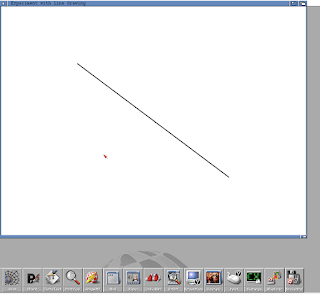
I recently tested two types of programs on Icaros 2.2.5/Aros. The first was a basic GLUT program while the other was a basic MUI program. GLUT AmigaOS 3.x running simple GLUT program. I tried GLUT as I was looking for a cross platform GUI library that provides basic windowing functions in OpenGL. Although GLUT provides basic window functions, it lacks in gadgets. So I did a further search and found the Agar Library  and the GLUI Library , both of which I will try in the future. So in testing GLUT on Icaros 2.2.5 and on AmigaOS 3.x, I downloaded a small sample program from this website . The sample program is here . I did modify the program and changed the screen resolution to 800 x 600 rather than the default of 1280 x 800. The sample GLUT program ran and operated successfully on AmigaOS 3.x, which was running on WinUAE 3.4.0. When running on Icaros the program ran but it did not draw the line. So unsure as to the cause of this on Icaros as other OpenGL programs ha...

AmigaOS Aros clone on Icaros Desktop version 2.2.5

Image
 Icaros Desktop New Install I had some extra time recently, so I decided to try out the Icaros Desktop  2.2.5, which was released in December 2018. Icaros Desktop is an AmigaOS clone that runs on x86 hardware. Icaros is based upon Aros. Aros in an operating system that can be installed on an x86 computer and it requires no host operating system to run. Most AmigaOS emulators require a host operating system such as Windows, Mac OS X, or Linux. Aros, however, eliminates the need for a host OS.  OWB web browser running on Icaros Desktop It took maybe 10-15 minutes to install Icaros into a Virtual Machine (Oracle VM Virtual Box, to be precise). During the install I selected to install the Extras as well as the Developer tools. I tested the default web browser, OWB, soon after installation. It handled many website adequately. However, I was unable to compose this article using Icaros because I was unable to login to my blogging website, blogger.com, with OWB. And, ...

Trying LibreOffice on HaikuOS

Image
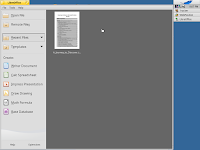
I've been testing out the R1B1 HaikuOS lately, and I decided to test drive its version 5 of LibreOffice. I used LibreWriter to work on a 28 page document that I copied over from the MacOS version of LibreWriter. My experience with LibreWriter is that it works fairly well on Haiku, but there are two problems that I encountered. The first problem is with the Copy-Paste functionality. Initially, if I copied data from either WebPositive or StyledEditor, then it would paste into the LibreWriter document successfully. However, if I performed a copy from within the document and pasted elsewhere in the document, then it seems that LibreWriter would no longer be able to access data from the system clipboard. The only way I found for LibreWriter to access the system clipboard was to restart the App. The second problem I encountered was when I attempted to export a LibreWriter document to a PDF. I encountered an App crash when attempting to export to PDF from the File>Export As... ...

Trying Out FreeBSD 12.0

Image
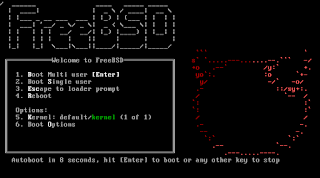
It has been several years since I have experimented with FreeBSD . And lately I have been watching FreeBSD videos on YouTube as well as reading articles about it. I recon that my interest was perked recently when I read that the new package manager in the HaikuOS was designed similarly to the package manager in FreeBSD. So a few days ago, I downloaded the new FreeBSD 12.0 ISO and created a new VM to test it out. Well, I had forgotten that FreeBSD boots to a text login prompt as apposed to a graphical login prompt. As I was exploring and trying to get X working, the process was reminding me of the time several years ago (back in the 90's) when I first started learning Linux. Back then X had to be configured manually by editing config files. Configuring X became a little easier when I discovered xconfigurator . Thankfully the FreeBSD documentation helped walk me through setting up X and getting a window manager installed. I chose Xfce as a window manager since it is l...

Getting PostgreSQL running on HaikuOS

Image
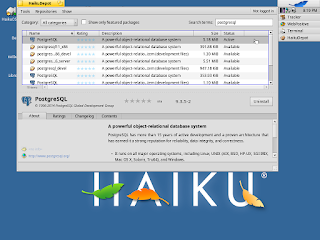
The past few days I have been experimenting with the Beta 1 release of HaikuOS. This is how I got PostgreSQL 9.3 to work after installing in from the HaikuDepot App. There is a PostgreSQL 9.6 version but I was not able to get it working. The 9.6 package seems to be incomplete. So for this article, we will use PostgreSQL 9.3 instead. Install PostgreSQL Install PostgreSQL 9.3 from HaikuDepot with the following steps. 1. Open HaikuDepot from the Application menu on Tracker. 2. In the Tools menu, select Refresh repositories . 3. In HaikuDepot, ensure that the check box next to  Show only featured packages is empy and unchecked. 4. In the Search terms text box enter postgre . After a few seconds all the available PostgreSQL packages should be displayed. 5. In the list select postgresql.  To the left of the  Install  button ensure the version is 9.3.5-2. If not, select the next postgresql in the list and see if it is version 9.3.5-2. 6. Click the Ins...

Repurposing Old x86 Computers with Haiku OS

Image
There are several videos on YouTube that demonstrate Haiku, and its BeOS predecessor, running multimedia applications efficiently on old x86 desktop and laptop computers. See Haiku performance videos here and here , and see a performance video of its predecessor BeOS here . Such great performance makes Haiku a great Operating System with which to re-purpose old x86 desktop and laptop computers. See this video for a 10 minute demonstration produced by Be, Inc. for the original BeOS. It is quite impressive what could be done on a Pentium III back in 1999. So if you have any older x86 hardware laying around, then verify that it will still work and then download the new Beta version from Haiku's website and try out the OS. Once Haiku OS is installed, there are other application to download to get productive. For web browsing the OS includes a web browser called WebPositive . It is a decent web browser and should be able to work on most common websites.  For office applicati...

Advantage of Haiku OS: Unity

The Beta release of Haiku OS is now available . If you enjoy tinkering with computer software, then give it a try. There are several advantages of Haiku. In this post I'll only discuss one of the advantages.That advantage being the unity of the Haiku platform. I first used Haiku back when it was called BeOS, and I continued to use if for a few years after Be, Inc, which was the original developer, went bankrupt. I had stopped using it mainly because it lacked a decent web browser. Web surfing is a common pastime of mine, and the lack of a good web browser was annoying. But recently the web browser situation has been improving as the Haiku team has been slowly improving its web browser to the point of which is bearable for me. Although this is still an area that needs improvement and could be considered a disadvantage by some, it is much better than it has been in the past and it continues to show improvements. The biggest and, I think, the best advantage of Haiku OS is that i...